Edit Training Sessions
Learn how to modify existing training session records in Training Manager Web Edition.
Overview
Editing training sessions allows you to update session details, correct information, add students, record completion status, and maintain accurate training records. Sessions can be modified at any time to reflect changes in scheduling, attendance, or outcomes.
- Schedule Changes: Update dates, times, or locations
- Student Management: Add or remove attendees
- Completion Recording: Mark training as completed or failed
- Cost Updates: Adjust fixed costs or student costs
- Documentation: Add notes, files, or additional details
Prerequisites
Before editing a training session, ensure you have:
- Appropriate Permissions: Data Administrator or System Administrator role
- Session Access: Ability to view and modify the session
- Updated Information: Accurate details for any changes you plan to make
Step-by-Step Instructions
Step 1: Locate the Session to Edit
Using Session Search
- Navigate to Sessions List: Go to the main Sessions List page
- Use Filter Box: Click in the Filter Sessions search box
- Enter Search Terms: Type part of the course title or session number
- Review Results: Matching sessions appear in the filtered list
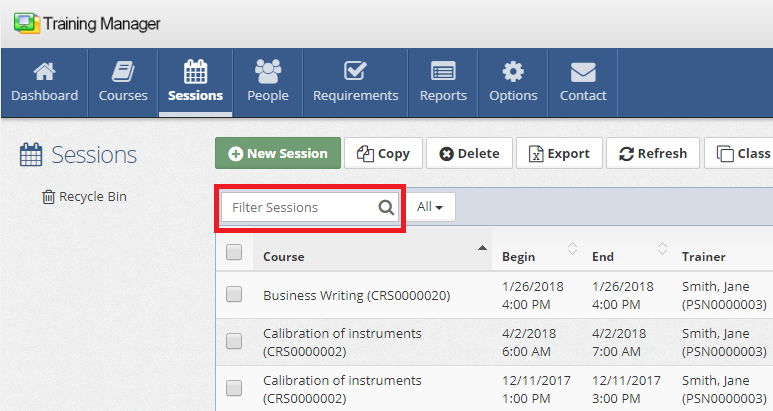
Search Tips:
- Use partial course names for broader results
- Search by session number for specific sessions
- Try trainer names or location names
- Sort by date if needed
Step 2: Open Session Details
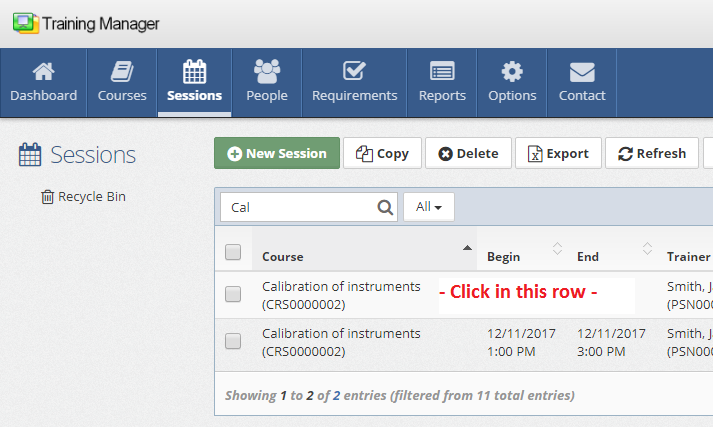
- Click Session Row: Click anywhere on the session row in the list
- Session Details Page: The system opens the session details page
- Verify Session: Confirm you've opened the correct session
Step 3: Make Required Changes
Student Management
Adding Students:
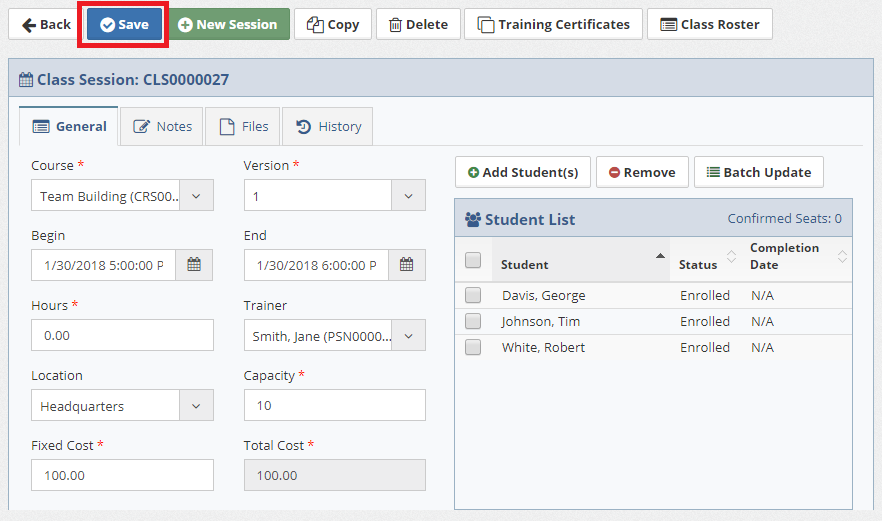
- Click the Add Student button
- Select students from the personnel list
- Configure individual student settings
Removing Students:
- Check boxes next to students to remove
- Click the Remove button
- Confirm removal when prompted
Batch Updates:
- Select multiple students using checkboxes
- Click the Batch Update button
- Enter the updated information (status, completion date, score)
- Apply changes to all selected students
Recording Training Outcomes
For each student in the session:
| Field | Description | Options |
|---|---|---|
| Status | Training completion status | Completed, Enrolled, Pending, Pending Approval, Wait-Listed, Failed, Cancelled, No Show |
| Completion Date | When training was finished | May differ from session end date |
| Score | Test or evaluation result | Numeric score or grade |
| Student Cost | Individual cost for this student | Override default if needed |
| Notes | Additional details | Special circumstances, accommodations |
Step 4: Save Your Changes
- Review Updates: Verify all changes are correct
- Click Save: Use the Save button to save modifications
- Confirm Success: System displays success message and updated details
Advanced Editing Features
File Management
Uploading Session Documents:
- Go to the Files tab
- Click Upload to add files
- Select training materials, attendance sheets, and certificates to upload
File Types to Consider:
- Training materials and handouts
- Completed evaluations
- Attendance records
- Certificates of completion
- Photos from training
History Tracking
Viewing Change History:
- Access the History tab
- Review chronological list of changes
- Click on specific changes for details
- Track who made changes and when
Integration Impact of Changes
Effects on Other Modules
Personnel Training Transcripts:
- Completion status updates automatically update individual records
- Score changes reflect in personnel training history
Training Requirements:
- Completion status changes affect requirement compliance
- Due date calculations may be updated
- Overdue status may be resolved
Reporting:
- Changes immediately affect training reports
- Compliance dashboards update automatically
- Cost reports reflect updated session costs
Best Practices for Session Editing
Data Accuracy
Verification Steps:
- Double-check all date and time changes
- Verify trainer availability for schedule changes
- Confirm location capacity for student additions
- Validate cost calculations
Documentation:
- Record reasons for significant changes in Notes
- Document any special circumstances or exceptions
Communication
Change Notifications:
- Inform affected students of schedule changes
- Notify supervisors of completion status updates
- Coordinate with trainers
Related Topics
- Add New Training Sessions - Creating session records
- Delete Training Sessions - Removing sessions
- Restore Training Sessions - Recovering deleted sessions
- Session Details Reference - Complete field descriptions
- Manage People - Personnel and student management
- Manage Requirements - Training requirement compliance
- Dashboards & Reports - Training reporting and analytics
Keeping session records accurate and up-to-date is essential for effective training management and compliance tracking. Regular maintenance of session data ensures reliable reporting and audit trails.