Calendar Integration
Learn how to use calendar invitations to manage training session attendance and track student responses in Training Manager Web Edition.
Overview
The calendar integration feature streamlines session attendance management by sending meeting invitations directly to students' email calendars. When students respond to these invitations, their responses automatically update in Training Manager, giving administrators real-time visibility into attendance intentions—all from a single location.
- Automated Updates: Student responses sync automatically to the session page
- Centralized Management: View all attendance information in one place
- Proactive Planning: Identify attendance issues before the session starts
- Waitlist Optimization: Fill vacant spots quickly based on responses
- Time Tracking: See when each student responded to invitations
How Calendar Integration Works
The Invitation Process
- Administrator Sends Invitation: From the session page, the administrator sends a calendar invitation to enrolled students
- Email Delivery: Students receive a meeting request in their email inbox with standard calendar controls
- Student Response: Students respond by clicking Yes, No, or Maybe in their email client
- Automatic Sync: The system processes responses and updates the student list in Training Manager
- Visual Feedback: Response status appears in the Calendar column with icons indicating acceptance, decline, or tentative status
Response Status Indicators
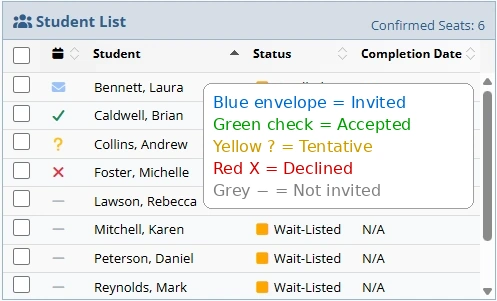
The student list shows real-time calendar invitation responses, helping administrators manage attendance proactively.
Hover your mouse over the calendar icon to see the date and time the student responded. This timestamp is especially helpful when managing waitlists to determine response order.
The Calendar column on the session page displays each student's response:
| Icon | Response | Meaning |
|---|---|---|
| ✉ | Invited | Student has been invited |
| ✓ | Accepted | Student confirmed attendance |
| ? | Tentative | Student is unsure about attendance |
| ✗ | Declined | Student cannot attend |
| — | Not Invited | Student has not been invited |
Managing Sessions Based on Responses
Accepted Responses
When students accept:
- Student indicates they plan to attend
- No immediate action required
- If student doesn't show up, update status to No Show after the session
Recommended Actions:
- Monitor for actual attendance during the session
- Update completion status after training concludes
Declined Responses
When students decline:
- Student cannot attend the scheduled session
- Consider updating student status to Cancelled
- Open spot becomes available for waitlist students
Recommended Actions:
- Update the student's status to Cancelled if appropriate
- Check for students on the waitlist
- Send calendar invitations to waitlist students
- Consider rescheduling the declining student to a future session
Tentative Responses
When students respond tentatively:
- Student is unsure about attendance
- May indicate scheduling conflicts or uncertainty
- Requires follow-up if session has a waitlist
Recommended Actions:
- With Waitlist: Contact the student before the event to confirm attendance
- Without Waitlist: Monitor for updated response closer to session date
- Document any special circumstances in student notes
No Response
When students don't respond:
- Student may not have seen the invitation
- Email client may not have sent a response
- Cannot assume attendance or absence
Recommended Actions:
- With Waitlist: Contact student to confirm attendance intentions
- Critical Sessions: Follow up directly via phone or alternative email
- After Session: If student doesn't attend, update status to No Show
Some email clients may not send automatic responses if the student responds after a certain time period. If you don't see an expected response, consider contacting the student directly to confirm their attendance.
Step-by-Step: Sending Calendar Invitations
Sending Initial Invitations
- Open Session Details: Navigate to the session you want to manage
- Open Email Form: Click the Email button
- Select Recipients: Choose students to receive invitations
- Confirm Invitation: Review email content and the "Confirm Calendar Invitation" checkbox is checked
- Send: System sends meeting requests to students
Managing Waitlist with Calendar Responses
Scenario: Student Declines and Waitlist Exists
- Identify Declined Response: Check Calendar column for declined invitations
- Update Student Status: Set declining student to Cancelled status
- Review Waitlist: Navigate to waitlist students for this session
- Select Replacement: Choose student(s) to invite from waitlist
- Send Invitation: Send calendar invitation to waitlist student
- Update Status: Change waitlist student status to Enrolled once accepted
Best Practices
Proactive Session Management
Before the Session:
- Send invitations 1-2 weeks in advance when possible
- Monitor responses daily as the session date approaches
- Follow up on tentative responses 2-3 days before the session
- Contact non-responders if the session has a waitlist
Day of Session:
- Review final response status
- Prepare for expected attendance based on acceptances
- Note any tentative responses for check-in
Communication Strategy
Effective Follow-Up:
- Use phone calls for urgent confirmations
- Send reminder emails to non-responders
- Document all communication in student notes
- Keep waitlist students informed of their status
Data Accuracy
Maintaining Records:
- Update student status based on actual attendance, not just calendar responses
- Record no-shows even if student accepted invitation
- Document reasons for cancellations when known
- Use hover timestamps to track response patterns
Troubleshooting
Common Issues
Student Says They Responded, But Status Shows No Response:
- Some email clients delay or fail to send responses
- Contact student directly to confirm attendance
- Manually update status if necessary
- Document the situation in notes
Multiple Responses from Same Student:
- System shows the most recent response
- Hover over icon to see latest response timestamp
- Most recent response reflects current intention
Calendar Invitation Not Received:
- Verify student email address is correct
- Check student spam/junk folders
- Resend invitation if needed
- Consider alternative communication method
Integration Impact
Effects on Other Features
Session Attendance:
- Calendar responses inform but don't replace attendance tracking
- Actual attendance must still be recorded after the session
- Responses help predict attendance for planning purposes
Waitlist Management:
- Declined responses trigger waitlist consideration
- Response timing helps prioritize waitlist order
- Tentative responses may warrant waitlist standby
Reporting:
- No-show patterns can be analyzed
Related Topics
- Add New Training Sessions - Creating session records
- Edit Training Sessions - Modifying session details and student status
- Delete Training Sessions - Removing sessions
- Session Details Reference - Complete field descriptions
- Manage People - Student and personnel management
Calendar integration provides a powerful tool for proactive attendance management, helping administrators make informed decisions and optimize training session utilization.