Add New Training Sessions
Learn how to create new training session records in Training Manager Web Edition.
Overview
Training sessions represent scheduled or completed training events where personnel receive instruction on specific courses. Creating session records allows you to track attendance, costs, completion status, and maintain detailed training documentation.
- Scheduled Training: Create sessions in advance for planned training events
- Completed Training: Create sessions to record training that has already occurred
- Individual Training: Document one-on-one training sessions
- Group Training: Record classroom or workshop-style training events
Prerequisites
Before creating a new training session, ensure you have:
- Active Course: The course must exist in the course catalog
- Trainer Assignment: Personnel marked as trainers in the people management system
- Location Setup: Training locations configured in the system hierarchy
- Appropriate Permissions: Data Administrator or System Administrator role
Step-by-Step Instructions
Step 1: Navigate to Session Creation
- From Session List Page: Click the New Session button in the toolbar
- From Existing Session: Click the New Session button while viewing any session details
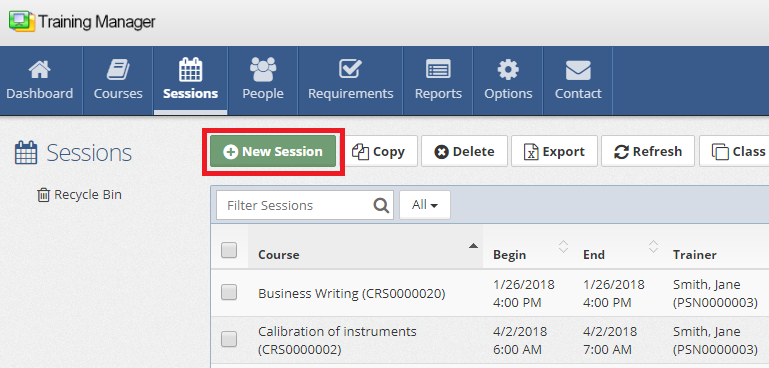
You can access the session creation page from multiple locations:
- Main Sessions List page
- Any existing Session Detail page
Step 2: Select Required Course
- Choose Course: Click the Course dropdown field
- Select from List: Choose the appropriate course from the available options
- Verify Selection: Confirm the correct course is selected
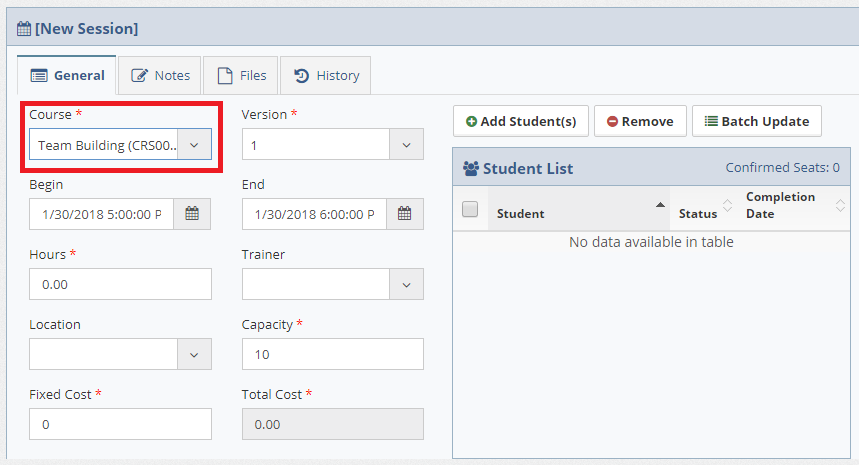
Course Selection Notes:
- Active courses appear at the top of the selection list
- Inactive courses are listed below active ones with an [Inactive] label
- Course selection determines available versions and default settings
Selecting a course automatically populates default values for:
- Default Trainer (if configured in course settings)
- Default Location (if configured in course settings)
- Fixed Cost and Student Cost (from course defaults)
Step 3: Configure Session Details
Complete the following fields as needed:
Basic Session Information
| Field | Description | Required |
|---|---|---|
| Version | Course version for this session | Yes |
| Begin Date/Time | When the session starts | Yes |
| End Date/Time | When the session ends | Yes |
| Hours | Training duration (auto-calculated if begin/end provided) | No |
Session Resources
| Field | Description | Notes |
|---|---|---|
| Trainer | Session instructor | Must be marked as trainer in personnel |
| Location | Where training occurs | From location hierarchy |
| Capacity | Maximum number of students | For planning purposes |
Cost Information
| Field | Description | Calculation |
|---|---|---|
| Fixed Cost | Base session cost | Independent of student count |
| Student Cost | Per-student cost | Multiplied by number of attendees |
Step 4: Save the Session Record
- Review Information: Verify all required fields are completed
- Click Save: Use the Save button to create the session record
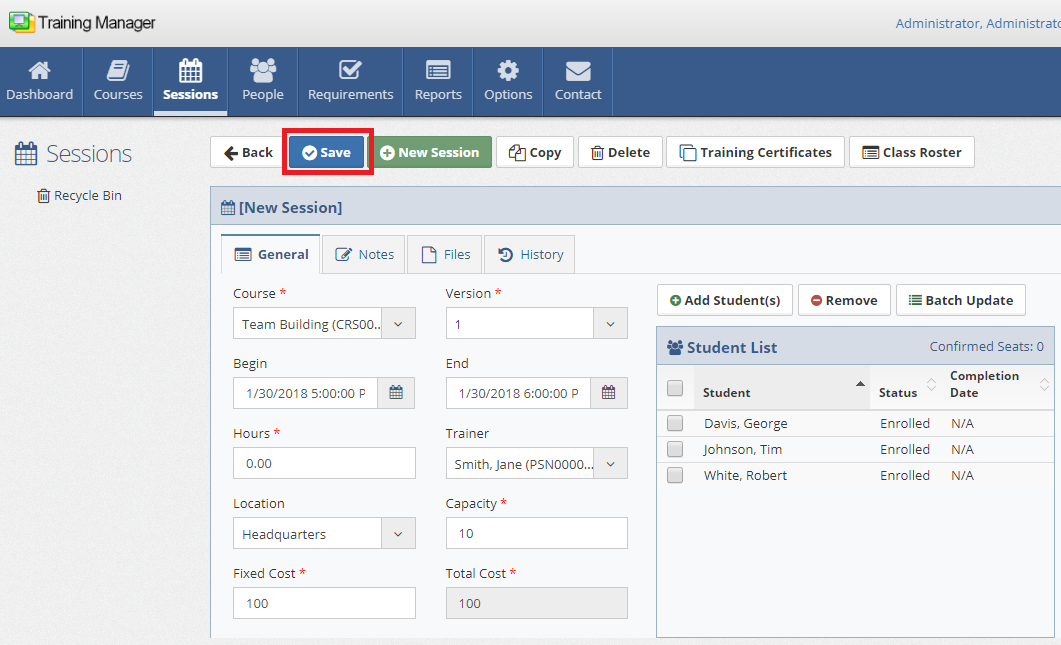
Once saved, you can:
- Add students to the session
- Upload training materials
- Record completion status
- Generate certificates
Post-Creation Tasks
Session Management
Common follow-up activities:
- Upload Materials: Add training documents to the Files tab
- Record Attendance: Track who attended the session
- Update Completion: Mark students as completed or failed
- Class Roster: Print class rosters for in-person sessions
Cost Management
Accurate Costing:
- Set realistic fixed costs for session overhead
- Calculate student costs based on materials and time
- Include facility and equipment costs where applicable
Budget Tracking:
- Monitor total session costs against budgets
- Track cost per student for efficiency analysis
- Document cost variations in session notes
Related Topics
- Edit Training Sessions - Modifying session information
- Delete Training Sessions - Removing sessions
- Restore Training Sessions - Recovering deleted sessions
- Session Details Reference - Complete field descriptions
- Manage Courses - Course catalog management
- Manage People - Personnel and trainer management
- Manage Requirements - Training requirement integration
Creating well-documented training sessions is essential for effective training management and compliance tracking. Take time to configure sessions properly for the best results.