Submit Training for Approval
This guide shows users how to submit their completed training records for approval through the My Dashboard interface.
Prerequisites
Before you can submit training records:
- The User Submitted Training feature must be enabled by an administrator
- You must have access to the My Dashboard page
Accessing the Submission Form
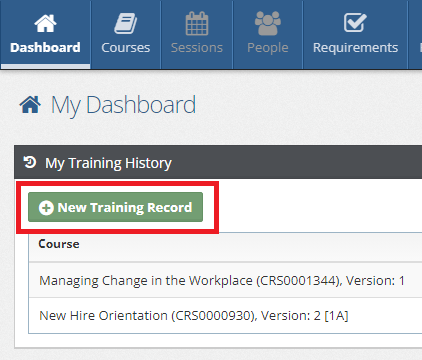
If the User Submitted Training feature is enabled, you'll see a "New Training Record" button above the Training History list on your My Dashboard page.
Submitting a Training Record
Follow these steps to submit a training record:
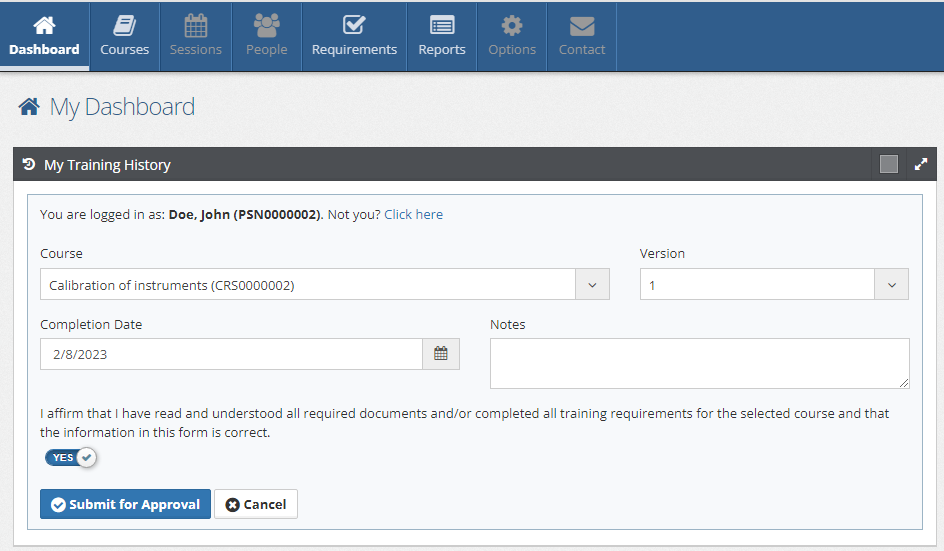
1. Open the Form
Click the "New Training Record" button to open the submission form.
2. Complete Required Fields
Fill in the following information:
- Course and Version - Select the specific course and version from the dropdown
- Completion Date - Enter the date you completed the training
- Notes - Add any relevant notes about the training (optional but recommended)
3. Review Acknowledgment
- Read the acknowledgment text carefully
- Check the acknowledgment box to confirm you agree to the terms
- This step is required before you can submit the record
4. Submit for Approval
Click the "Submit" button to send your training record for administrator approval.
After Submission
Once you submit your training record:
Status Updates
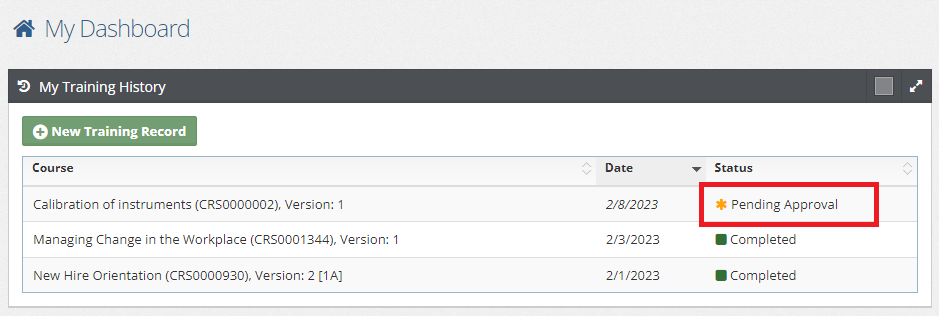
- The training will appear in your Training History list with the status "Pending Approval"
- You can view this status on your My Dashboard
What Happens Next
- Administrator Review - An administrator will review your submission on the Company Dashboard
- Approval Decision - The administrator will either Approve or Cancel your training record
- Status Update - Your training status will update to either "Completed" or "Cancelled"
- Requirement Fulfillment - If approved, the training will count toward fulfilling your training requirements
Important Notes
Ensure all information is accurate before submitting.
Training approval times may vary depending on your organization's review process. Contact your administrator if you have questions about pending submissions.
Troubleshooting
Can't See the "New Training Record" Button?
If you don't see the submission button:
- Verify the feature is enabled (contact your administrator)
- Check to ensure you are on the "My Dashboard" page
Form Won't Submit?
Common issues and solutions:
- Missing acknowledgment - Ensure you've checked the acknowledgment box
- Invalid date - Verify the completion date is correct for the selected course version
- Missing course selection - Ensure you've selected both course and version
Next Steps
After submitting training records:
- Monitor your My Dashboard for status updates
- Contact your administrator if you have questions about approval status
- Continue submitting additional training records as needed
Related Topics
- Enable User Submitted Training - Administrator setup guide
- Approve Training Records - How administrators process submissions
- My Dashboard - Your training overview page