Enable User Submitted Training
Before users can submit training records for approval, a System Administrator must first enable this feature in the system options.
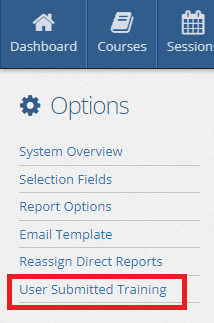
Accessing User Submitted Training Options
To access the User Submitted Training configuration:
- Click the Options button in the main toolbar at the top of the page
- In the left side navigation pane, click the User Submitted Training link
Configuring the Feature
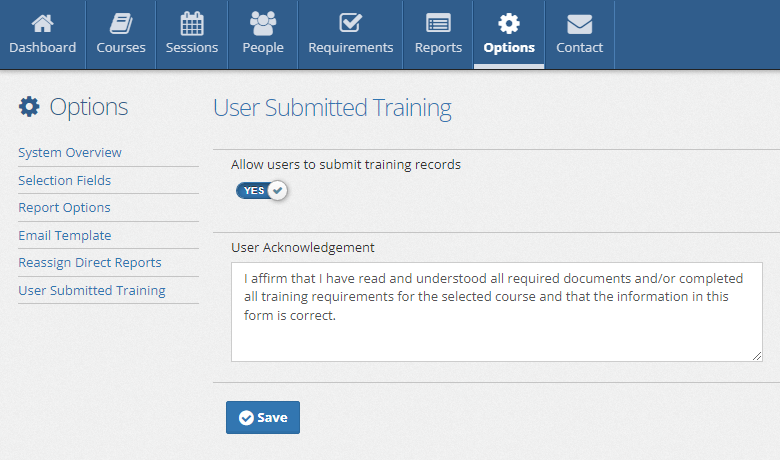
In the User Submitted Training options, you can:
1. Enable the Feature
- Check the "Yes" box to enable the feature
- This will add a "New Training Record" button to the My Dashboard page for all users
2. Set Acknowledgment Text
- Review and update the Acknowledgment Text
- Users must agree to this text before submitting their training for approval
- Consider including:
- Training record accuracy requirements
- Consequences for false submissions
- Data retention policies
- Contact information for questions
3. Save Changes
- Don't forget to click the "Save" button to save changes to the User Submitted Training options
Important Considerations
Best Practice
Review your acknowledgment text carefully. This serves as an agreement between the user and your organization regarding the accuracy of submitted training records.
Next Steps
Once you've enabled User Submitted Training:
- Train Your Users - Show users how to submit training records
- Set Up Approval Process - Ensure administrators know how to approve training
- Monitor Usage - Regularly check the Company Dashboard for pending approvals
Related Topics
- Submit Training Records - User guide for submitting training
- Approve Training Records - Administrator guide for approvals
- My Dashboard - Where users submit training
- Company Dashboard - Where administrators approve training