Add New People
Learn how to create new personnel records in Training Manager Web Edition.
Overview
Adding new personnel records is essential for tracking employee training and maintaining organizational structure. This guide walks you through creating personnel records with proper identification and organizational assignment.
Prerequisites
Before adding personnel, ensure you have:
- Data Administrator or System Administrator permissions
- Access to the People List page
- Employee information ready (name, group, job roles, etc.)
- Understanding of your organization's personnel numbering scheme
Step-by-Step Instructions
1. Access the New Person Function
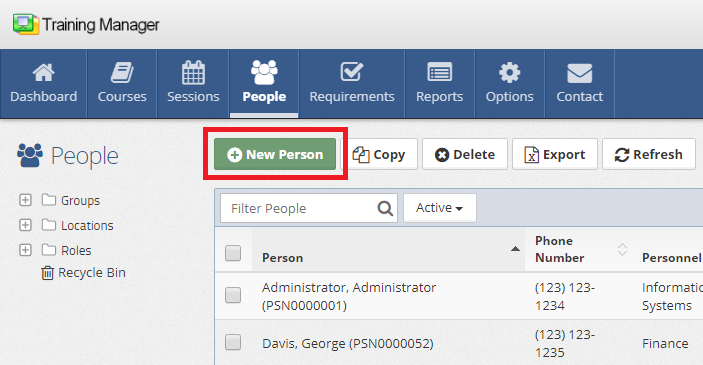
Click the "New Person" button, which can be found in two locations:
- People List page - In the main toolbar above the personnel list
- Personnel Detail page - When viewing an existing personnel record
2. Enter Required Information
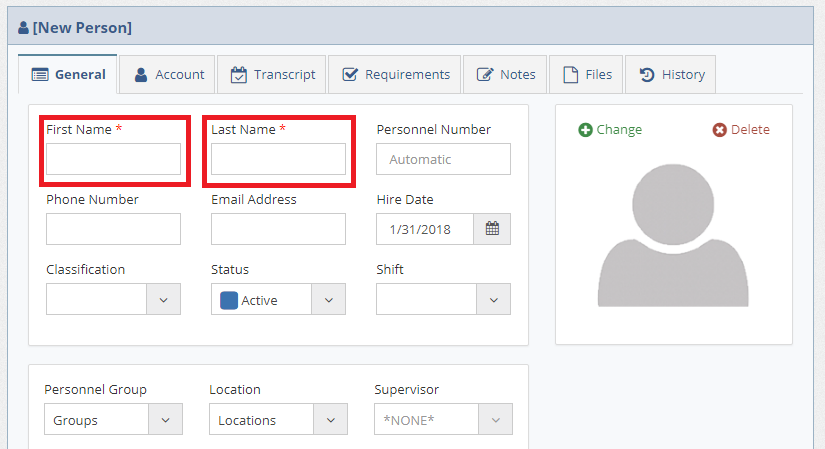
On the new personnel page, complete the required fields:
Required Fields
First Name:
- Enter the employee's first name
- Use proper capitalization
- Follow your organization's naming conventions
Last Name:
- Enter the employee's last name
- Use proper capitalization
- Include suffixes (Jr., Sr., III) if applicable
Personnel Number (Optional)
You have two options for personnel numbering:
Automatic Numbering:
- Leave the "Personnel Number" field empty
- The system will automatically generate a unique personnel number
- Recommended for consistent numbering
Manual Numbering:
- Enter a specific personnel number manually
- Ensure the number follows your organization's scheme
- Verify the number isn't already in use
- Useful for migrating from existing systems or to match existing employee IDs
3. Complete Additional Information
Fill in other important fields as needed:
Contact Information
- Email Address - For system notifications and communication
- Phone Number - Primary contact number
Organizational Assignment
- Department/Group - Assign to appropriate organizational group
- Location - Specify work location or site
- Job Roles - Define the employee's job roles (note: this may be linked to training requirements, and is distinct from an organizational job title)
- Supervisor - Assign reporting relationship
Employment Details
- Hire Date - Employee start date
- Personnel Number - Employee identifier
- Status - Active/Inactive designation
4. Save the Personnel Record
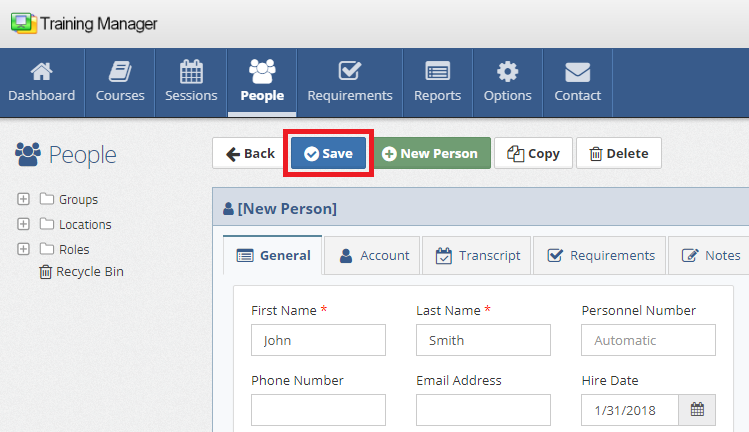
Click the "Save" button to create the personnel record.
Personnel Number Best Practices
Automatic vs. Manual Numbering
Use Automatic Numbering When:
- You don't have an existing numbering system
- You want to ensure unique numbers
- You're starting fresh with Training Manager
Use Manual Numbering When:
- You have an established employee ID system
- You're migrating from another system
- You need specific number formats or ranges
Numbering Scheme Examples
- Sequential: 001, 002, 003...
- Departmental: HR001, IT001, PROD001...
- Location-based: NY001, LA001, CHI001...
- Hire year: 2024001, 2024002...
Organizational Assignment
Groups and Departments
Properly assign personnel to organizational groups:
- Consistency - Use standardized group names
- Hierarchy - Maintain clear organizational structure
- Flexibility - Allow for future reorganization
Locations
Assign personnel to appropriate locations:
- Physical sites - Manufacturing plants, offices, warehouses
- Regions - Geographic territories or areas
- Virtual locations - Remote workers, mobile personnel
Roles and Job Functions
Define clear job roles that:
- Reflect actual responsibilities - Match the employee's duties
- Link to training requirements - Connect roles to required training
- Support compliance - Enable regulatory requirement tracking
After Creating Personnel Records
Once personnel records are saved:
- Modify User Account - Modify the system access if needed
- Schedule Initial Training - Plan training sessions for new employees
- Verify Information - Review the record for accuracy and completeness
Troubleshooting
Common Issues
"Personnel Number Already Exists" Message:
- Choose a different number or use auto-generation
- Check if the person already exists in the system
- Verify numbering scheme consistency
"Required Field Missing" Message:
- Ensure first and last names are entered
- Check for any additional required fields
- Verify data validation messages
Save Button Not Working:
- Verify all required fields are completed
- Verify any data validation messages are resolved
Access Issues
Cannot Access New Person Function:
- Verify user permissions with administrator
- Check syste role assignment
Data Quality Tips
Accurate Information
- Double-check spelling - Names and contact information
- Verify organizational assignments - Correct departments and roles
- Email Address - Ensure correctness for notifications and password resets
- Consistent formatting - Follow established data standards
Future Maintenance
- Regular reviews - Periodically verify personnel information
- Update procedures - Establish processes for information changes
- Data cleanup - Remove or inactivate outdated records
Next Steps
After creating personnel records:
- Edit personnel information to add additional details
- Set up user accounts for system access
- Assign training requirements based on job roles
- Schedule training sessions for new employees
Related Topics
- Edit People - Modifying personnel information
- User Management - Creating system accounts
- Training Requirements - Assigning role-based training
- Organizational Structure - Setting up groups and roles
Next: Learn how to edit existing personnel records to update their information.