Restore Personnel From Recycle Bin
Learn how to recover deleted personnel records from the recycle bin in Training Manager Web Edition.
Overview
When personnel records are deleted, they're moved to a recycle bin rather than being permanently removed. This allows administrators to restore accidentally deleted records or recover personnel information that is needed again.
Prerequisites
Before restoring personnel records, ensure you have:
- Data Administrator or System Administrator permissions
- Knowledge of which personnel record needs to be restored
- Confirmation that the person should be returned to active status
Step-by-Step Instructions
1. Access the Recycle Bin
Navigate to the recycle bin from the People List page:
- Go to the main People List page
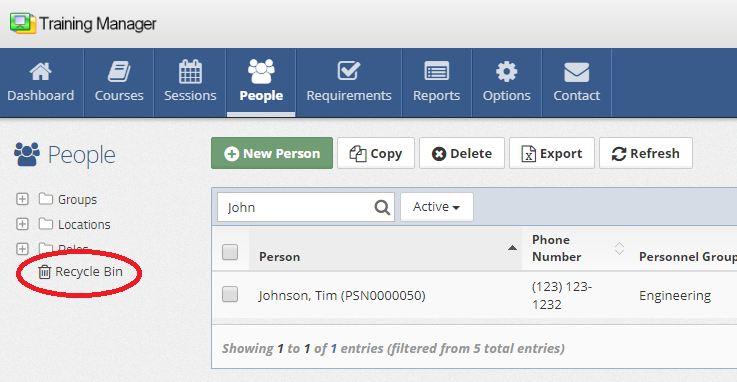
- Look for the "Recycle Bin" link located below the list of folders
- Click the Recycle Bin link
2. Locate the Personnel Record to Restore
In the Recycle Bin view:
- Browse the list of deleted personnel records
- Use search functionality if available to find specific people
- Locate the person you want to restore
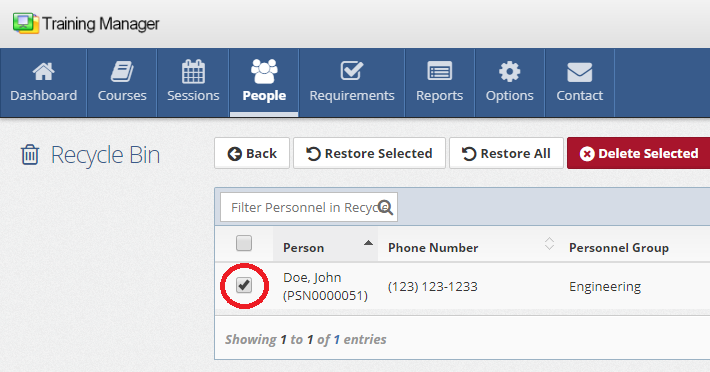
- Check the box next to the personnel record you want to restore
- Click the column headers to sort by name, last updated date, etc.
- Use first name, last name, or personnel number to identify correct records
- Multiple personnel can be selected for bulk restoration
3. Restore the Personnel Record
Complete the restoration process:
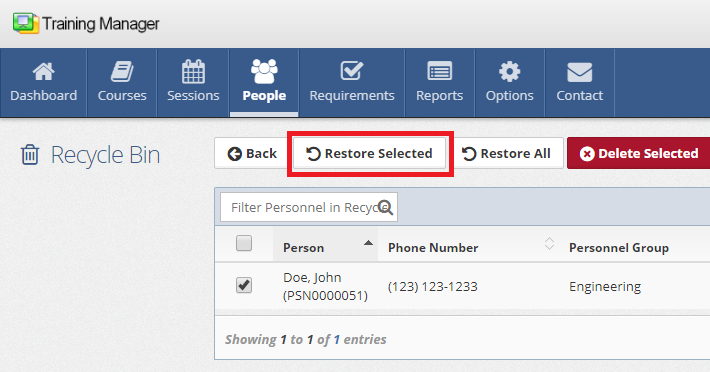
- With the desired personnel record(s) selected, click the "Restore Selected" button
- The system will move the personnel record back to the main People List
- Verify the restoration was successful
Bulk Restoration
To restore multiple personnel records simultaneously:
- Select multiple personnel by checking boxes next to each record
- Click "Restore Selected" to restore all selected personnel at once
- Verify all personnel were restored successfully
This is useful when:
- Multiple people were accidentally deleted
- Restoring an entire department or group
- Recovering from bulk deletion errors
After Restoration
Once personnel records are restored:
Verify Personnel Status
- Check People List - Ensure the person appears in the main People list
Update Related Items
Confirm/update these related elements:
Organizational Structure:
- Supervisory relationships - Restore manager/direct report connections
- Group assignments - Verify department and team memberships
- Location assignments - Confirm current work location
- Role assignments - Ensure job roles are current
System Access:
- User accounts - Reactivate system login access if needed
- Permissions - Restore appropriate system permissions if needed
- Data access - Verify proper data scope assignments
Communication
- Notify stakeholders - Inform supervisors and HR of restoration
- Communicate to team - Let colleagues know about the person's return
Understanding the Recycle Bin
What's Stored
The recycle bin contains:
- Recently deleted personnel records
Retention Policy
The system does not automatically delete records from the Recycle Bin:
- Only System Administrators can permanently delete records from the Recycle Bin
- Consider your organization's data retention policy when deleting or restoring records
Common Restoration Scenarios
Accidental Deletion
When personnel are deleted by mistake:
- Restore immediately to minimize disruption
- Communicate the error and resolution to stakeholders
Employee Return
When former employees return to organization:
- Restore previous personnel record to maintain history
- Update contact information and organizational assignments
- Reassign current job roles
- Reactivate system access as needed
Best Practices
Before Restoration
- Verify correct personnel - Ensure you're restoring the intended person
- Review current status - Ensure restoration is still appropriate
- Plan for updates - Prepare to update organizational assignments
During Restoration
- Restore promptly - Don't delay if you know a record was deleted in error
- Document restoration - Note why the personnel record was restored
- Update information - Refresh any outdated details
After Restoration
- Verify completeness - Ensure all personnel information is present
- Communicate changes - Notify relevant staff about restored personnel
Troubleshooting
Personnel Not in Recycle Bin
Possible reasons:
- Record may have been permanently deleted
- Record may not have been deleted (check active and inactive personnel)
- Recycle bin may have been emptied (permanent deletion)
Solutions:
- Check with system administrator
- Verify the person was actually deleted
- Look for similar names or personnel numbers
Cannot Access Recycle Bin
Possible causes:
- Insufficient user permissions
Solutions:
- Contact system administrator for access
- Verify user role and permissions
Restore Button Not Working
Troubleshooting steps:
- Ensure at least one personnel record is selected
- Verify sufficient permissions for restoration
Prevention Strategies
To avoid future accidental deletions:
User Training
- Train staff on proper deletion procedures
- Emphasize the difference between deletion and inactivation
- Establish approval processes for personnel deletion
- Create clear documentation for personnel management
System Safeguards
- Prompts for deletions
- Audit trails for personnel changes
Related Topics
- Delete People - Understanding the deletion process
- Edit People - Modifying restored personnel records
- Add New People - Creating new personnel records
- Personnel Management Overview - Complete personnel management guide
Personnel restoration helps maintain data integrity and recover from accidental deletions. Always verify restored personnel records are functioning properly and update any organizational assignments as needed.