Edit Existing Personnel Records
Learn how to modify and update existing personnel information in Training Manager Web Edition.
Overview
Personnel information changes frequently due to promotions, transfers, contact updates, and organizational changes. This guide shows you how to locate and edit existing personnel records to keep your database current.
Prerequisites
Before editing personnel records, ensure you have:
- Data Administrator or System Administrator permissions
- Access to the People List page
- Knowledge of which personnel record needs updating
- Updated information for the employee
Step-by-Step Instructions
1. Locate the Personnel Record
Use the search functionality to find the person you want to edit:
- Navigate to the People List page
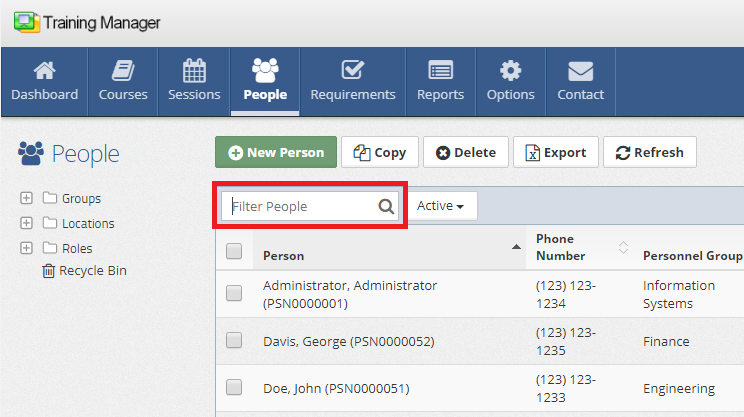
- Click in the "Filter People" search box
- Use one of these search methods:
- Scan the personnel barcode using a barcode scanner
- Type a few characters of the person's name
- Enter the personnel number for exact matches
The list will automatically filter to show matching personnel records.
- Barcode scanning - Fastest method for quick lookups
- Name search - Use partial first or last names
- Personnel number - Most precise for exact matches
- Partial typing - System filters as you type
2. Open the Personnel Detail Page
Once you've located the person:
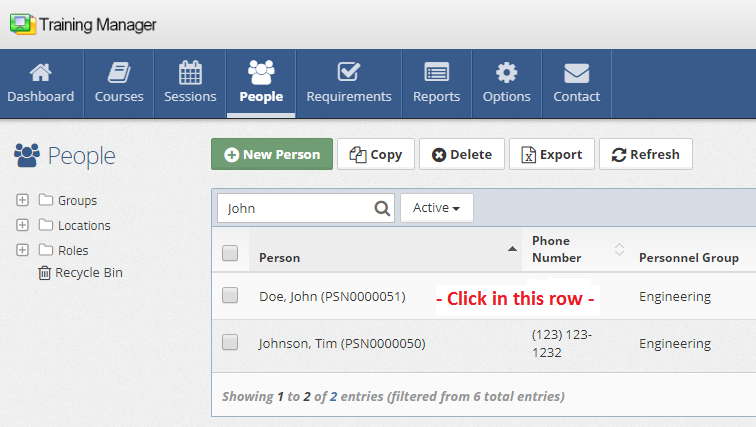
- Click on the row containing the personnel record
- This will open the Personnel Detail page where you can make changes
3. Make Your Changes
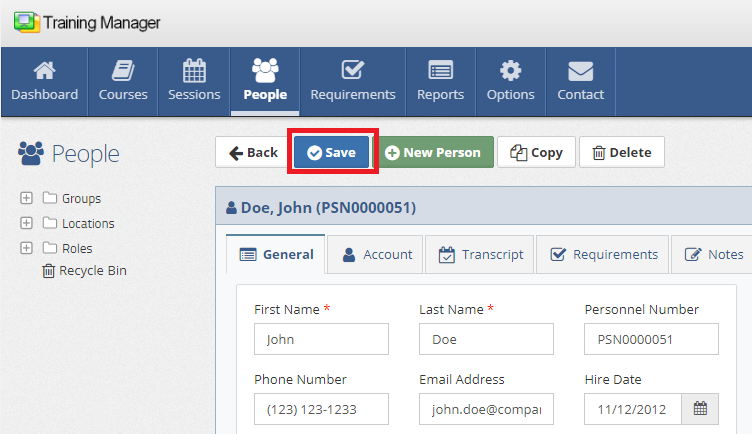
On the Personnel Detail page:
-
Modify fields as needed by typing or selecting new values
-
Update any relevant information such as:
- Contact information (email, phone)
- Organizational assignments (group, location, supervisor, job roles)
- Personal information (name changes, emergency contacts in notes)
-
Click the "Save" button to save your changes
Advanced Search Options
If you can't find the personnel record using basic search:
Expand Your Search Scope
Ensure you're searching the entire database by:
-
Select top-level folders on the left sidebar:
- "Groups" - Set to top-level to see all groups/departments
- "Locations" - Set to top-level to see all sites
- "Roles" - Set to top-level to see all system roles
-
Check filter settings next to the search box:
- "All" - Shows all personnel regardless of status
- "Active" - Shows only active employees
- "Inactive" - Shows only inactive employees
Search Strategies
- Try variations - Different spellings
- Use partial searches - Start with fewer characters
- Check different groups or locations - Person may have transferred
- Verify status - Employee may be marked inactive
Common Editing Tasks
Contact Information Updates
Email Changes:
- Update primary email addresses
- Verify email accuracy
Organizational Changes
Department Transfers:
- Move personnel between groups/departments
- Update reporting relationships
- Adjust job role assignments as needed
Location Changes:
- Transfer between physical locations
- Update site assignments
- Maintain location-specific training requirements
Job Role Changes:
- Promote to new positions
- Update job roles for new responsibilities
- Training requirements updated automatically based on changed roles
- New training requirements may be needed for new roles if not already created
Supervisory Changes:
- Update direct report relationships
- Change supervisor assignments
- Maintain organizational hierarchy
Employment Status Updates
Status Changes:
- Mark employees as inactive when they leave
- Reactivate returning employees
- Update employment dates
Personal Information:
- Name changes (marriage, legal changes)
- Emergency contact updates in notes
Best Practices
Before Making Changes
- Verify accuracy of new information
- Facts Only - Avoid subjective comments in personnel records which may be viewed by others
- Document reasons for major changes
- Consider impact on training records and requirements
During Editing
- Maintain data standards - Follow organizational formatting rules
- Save frequently - Avoid losing changes due to timeouts
- Double-check entries - Verify accuracy before saving
After Changes
- Verify updates appear correctly in personnel lists
- Check training requirements if group or role changes - then schedule new training if needed
- Communicate changes to relevant stakeholders
Impact of Personnel Changes
- Required training updated automatically based on group and job role changes
- Access scope changes for organizational transfers
Troubleshooting
Personnel Record Not Found
Possible Causes:
- Record may be inactive (check filter settings)
- Person may be in different organizational unit
- Search terms may be too specific
- Record may have been deleted
Solutions:
- Broaden search terms and filters
- Check all organizational levels
- Try different name variations
Cannot Save Changes
Possible Causes:
- Insufficient permissions
- Required fields missing or invalid
Solutions:
- Verify all required fields are completed
- Ensure unique values for personnel numbers/emails
- Contact system administrator for permission issues
Changes Not Reflecting
Check These Items:
- Filter settings on personnel lists
- Organizational view selections
Data Privacy Considerations
When editing personnel records:
- Maintain confidentiality of personal information
- Follow data protection policies established by your organization
- Document changes for audit trails when required
Next Steps
After editing personnel records:
- Review user account settings for access changes
- Communicate updates to supervisors and training coordinators
- Schedule additional training for job role changes
Related Topics
- Add New People - Creating new personnel records
- Delete People - Removing personnel from active status
- Restore People - Recovering deleted records
- User Management - Managing system access