Edit Existing Courses
Learn how to modify and update existing training courses in Training Manager Web Edition.
Overview
Course information often needs updates over time. This guide shows you how to locate and edit existing courses to keep your training catalog current.
Prerequisites
Before editing courses, ensure you have:
- Data Administrator or System Administrator permissions
- Access to the Course List page
- Knowledge of which course needs updating
Step-by-Step Instructions
1. Locate the Course
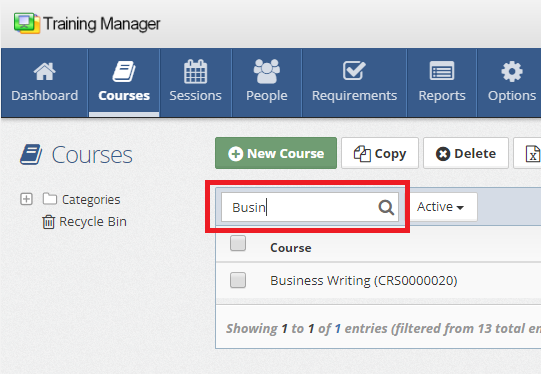
Use the search functionality to find the course you want to edit:
- Navigate to the Course List page
- Click in the "Filter Courses" search box
- Type a few characters of either:
- Course Title
- Course Number
The list will automatically filter to show matching courses.
- Use partial words for broader results
- Try searching by course number for exact matches
- Use keywords from the course title for content-based searches
2. Open the Course Detail Page
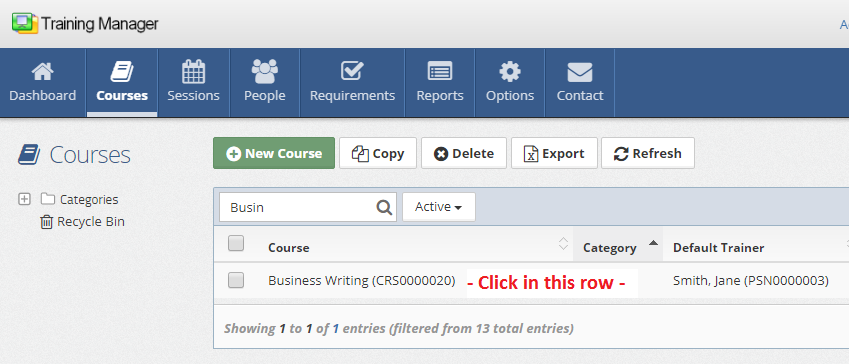
Once you've located the course:
- Click on the row containing the course record
- This will open the Course Detail page where you can make changes
3. Make Your Changes
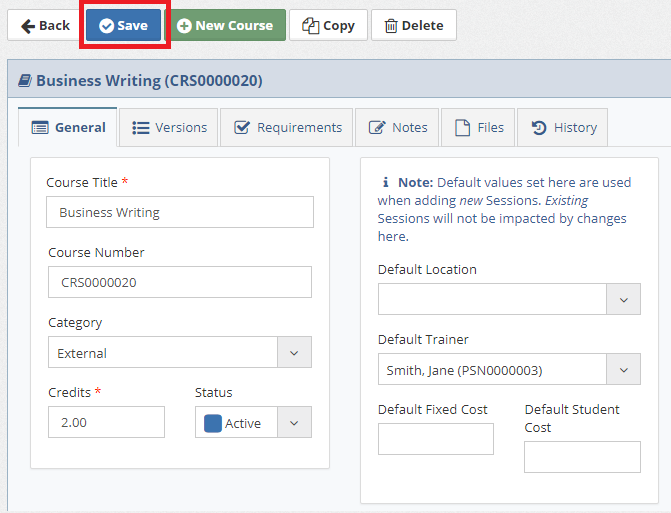
On the Course Detail page:
-
Modify fields as needed by typing or selecting new values
-
Update any relevant information such as:
- Course title
- Course number
- Description
- Category
- Duration
- Prerequisites
-
Click the "Save" button to save your changes
Advanced Search Options
If you can't find the course using basic search:
Check Your Search Scope
Ensure you're searching the entire database by:
- Select Categories - Choose the top-level "Categories" on the left sidebar
- Check Filter Status - Verify the filter selection field (next to the search box) is set appropriately:
- "All" - Shows all courses regardless of status
- "Active" - Shows only active courses
- "Inactive" - Shows only inactive courses
Expand Your Search
- Try different keywords or partial course titles
- Search by course number if you know it
- Check if the course might be in a different category
- Verify the course hasn't been deleted (check recycle bin)
Common Editing Tasks
Updating Course Information
Course Title Changes:
- Update titles to fix typos or add clarity
- Ensure consistency with organizational standards
- Consider impact on existing training records -- editing the master course title will change it for all training sessions using that course
- Avoid changing titles frequently to maintain historical accuracy -- consider creating a new course record if appropriate
Course Number Changes:
- Be cautious with number changes
- Consider historical reporting implications
Category Management
- Create new categories when needed
- Maintain logical course groupings appropriate for your organization
Best Practices
Before Making Changes
- Document current settings if making significant changes
- Consider impact on existing training records and sessions
- Coordinate with stakeholders for major course updates
After Changes
- Update related documentation if needed
- Communicate changes to relevant staff
Troubleshooting
Course Not Found
Possible Causes:
- Course might be inactive (check filter settings)
- Course might be deleted (check recycle bin)
- Search terms might be too specific
- Course might be in a different category
Solutions:
- Broaden search terms
- Check all filter options
- Verify category selection
Cannot Save Changes
Possible Causes:
- Insufficient permissions
- Required fields missing
- Duplicate course numbers
Solutions:
- Verify all required fields are completed
- Ensure course number is unique
- Contact system administrator for permission issues
Version Control Considerations
When making significant changes to courses:
- Maintain historical records for compliance
- Document change reasons and dates
- Coordinate with training administrators
Next Steps
After editing courses:
- Review training sessions that use the updated course
- Update any related requirements
- Communicate changes to instructors and administrators
Related Topics
- Add New Courses - Creating new course records
- Delete Courses - Removing courses from active use
- Restore Courses - Recovering deleted courses
- Training Sessions - Managing course delivery
Next: Learn how to delete courses that are no longer needed.