Delete Courses
Learn how to Delete courses by moving them to the Recycle Bin in Training Manager Web Edition.
Overview
When courses are no longer needed, you can Delete them to keep your course catalog organized. Deleted courses are moved to a Recycle Bin where they can be Restored by an Administrator if needed.
Prerequisites
Before deleting courses, ensure you have:
- Data Administrator or System Administrator permissions
- Confirmation that the course should be removed
- Understanding of the impact on existing training records
Important Considerations
Think carefully before deleting courses:
- Existing training records reference the course
- Historical reporting may be affected
- The action moves the course to Recycle Bin (not permanent deletion)
- Consider setting the course Status to Inactive instead of deleting if appropriate
Step-by-Step Instructions
1. Locate the Course to Delete
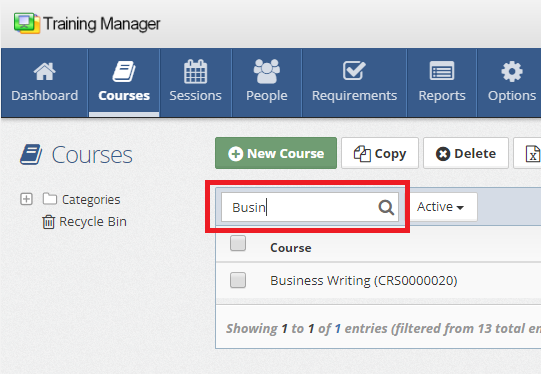
Use the search functionality to find the course:
- Navigate to the Course List page
- Click in the "Filter Courses" search box
- Type a few characters of either:
- Course Title
- Course Number
2. Delete the Course
You have two options for deleting a course:
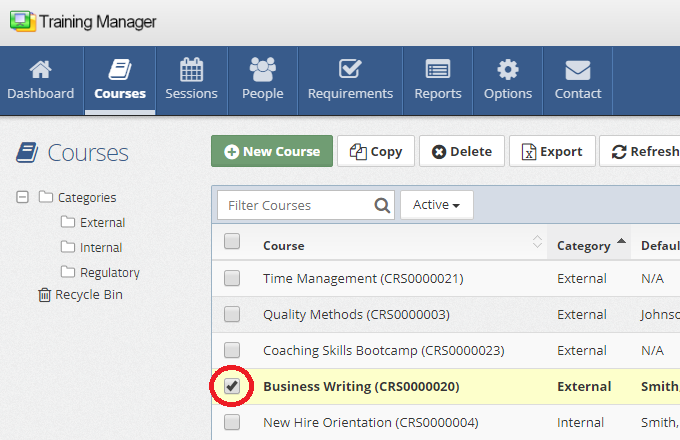
Option A: Delete from Course List
- Select the course by placing a checkmark in the box next to the course
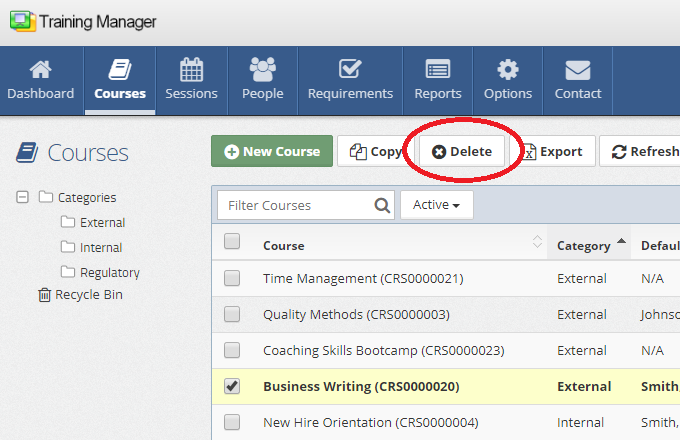
- Click the "Delete" button in the Course List toolbar
Option B: Delete from Course Detail Page
- Open the course by clicking on the course row
- On the Course Detail page, click the "Delete" button
3. Confirm Deletion
The system will ask for confirmation before proceeding with the deletion. Confirm that you want to move the course to the Recycle Bin.
Advanced Search for Deletion
If you can't find the course to delete:
Ensure Complete Search Coverage
Make sure you're searching the entire database:
- Select top-level "Categories" on the left sidebar
- Set filter options appropriately:
- "All" - Shows all courses regardless of status
- "Active" - Shows only active courses
- "Inactive" - Shows only inactive courses
Search Strategies
- Use partial course titles for broader results
- Search by exact course numbers
- Check different categories
- Verify course spelling and formatting
Deletion vs. Inactivation
Consider these alternatives to deletion:
When to Delete
Appropriate for deletion:
- Duplicate courses created in error
- Test courses no longer needed
- Courses that were never used
- Obsolete courses with no historical significance
When to Inactivate Instead
Consider Inactivation for:
- Courses with existing training records
- Courses that may be needed for historical reporting
- Courses that might be reactivated in the future
- Courses required for compliance documentation
Impact of Course Deletion
- Related Session records will be deleted
- Related Training records will be deleted
- Related Requirement records will be deleted
Impact of Course Inactivation (Status: Inactive)
- Related Session records will remain in the system
- Related Training records will remain in the system for historical reporting
- Related Requirement records will not be displayed in the Requirements list, and will not impact training compliance
Best Practices
Before Deletion
- Review course usage in reports and training records
- Check for scheduled sessions using the course
- Verify with stakeholders that deletion is appropriate
Deletion Process
- Delete in batches if removing multiple courses
- Communicate changes to relevant staff
- Update related documentation
Troubleshooting
Cannot Find Course to Delete
Check these items:
- Course filter settings (All/Active/Inactive)
- Category selection
- Search term accuracy
- Course may already be deleted
Delete Button Not Available
Possible causes:
- Insufficient permissions
Solutions:
- Contact system administrator
- Verify user permissions
Accidental Deletion
If you accidentally delete a course:
- Don't panic - initial deletion sends courses to the Recycle Bin, not permanent deletion
- Follow the restore process immediately
- Verify restoration was successful
- Review deletion procedures to prevent future accidents
After Deletion
Once you've deleted courses:
- Update training materials that referenced the deleted course
- Communicate changes to training administrators
Next Steps
After deleting courses:
- Learn how to restore courses from the recycle bin
- Review remaining course organization
- Update training requirements as needed
Related Topics
- Restore Courses - Recovering deleted courses
- Edit Courses - Modifying course information
- Add New Courses - Creating replacement courses
- Training Sessions - Managing training sessions
Next: Learn how to restore deleted courses from the recycle bin.