Using the Camera
Camera mode uses your device's camera to read barcodes and QR codes directly from employee badges. It works on mobile phones, tablets, and desktop computers with a webcam.
Requirements
- A modern browser (Chrome, Edge, Firefox, or Safari)
- A secure HTTPS connection - browsers block camera access on plain HTTP pages
- Camera permission granted to the browser when prompted
Getting Started
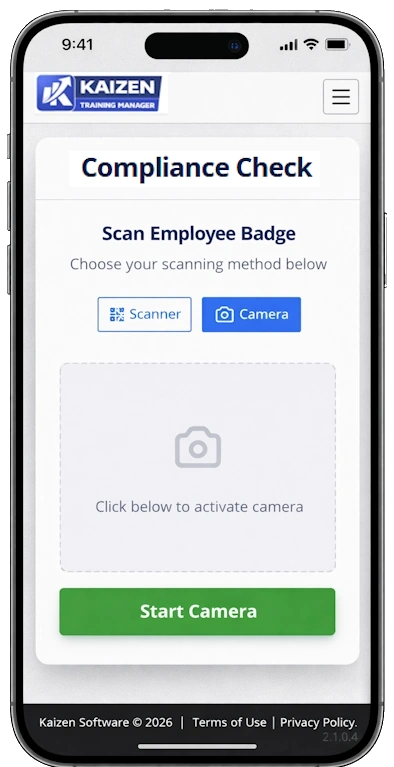
- Click the Compliance Check button on your home or dashboard page
- Click the Camera toggle button at the top of the page
- Click Start Camera
- Allow the browser to access your camera when prompted
- Point the camera at the barcode on the employee's badge
- The scan triggers automatically when a barcode is detected
The camera stops automatically after a successful scan and the training panel opens. Use Scan Next or Back to return to the scan screen, which restarts the camera.
Supported Barcode Formats
| Format | Common Use |
|---|---|
| Code 128 | Most employee ID and access control badges |
| Code 39 | Older badge and inventory systems |
| QR Code | 2D square barcodes |
| ITF | Interleaved industrial barcodes |
| Data Matrix | Compact 2D matrix barcodes |
| PDF 417 | High-density stacked barcode format |
Camera Controls
| Control | Description |
|---|---|
| Start Camera | Activate the camera and begin scanning |
| Stop Camera | Deactivate the camera |
| Switch to Front / Rear | Toggle between front and rear cameras |
| Flashlight (🔦) | Toggle the camera flashlight - rear camera only, where supported |
| Tap to focus | Tap anywhere on the camera preview to focus on that point |
The flashlight button only appears after the camera confirms flashlight support via the browser. This check runs automatically after the camera starts and may take up to 2 seconds to appear. The flashlight is not available on iOS - see iOS notes below.
Scanning Tips
- Hold steady - keep the camera still for at least 1 second over the barcode
- Distance - hold 10–30 cm (4–12 inches) from the badge; too close or too far reduces accuracy
- Lighting - ensure the barcode is well lit; use the flashlight in low-light environments
- Reduce glare - tilt the badge slightly if the camera struggles with reflective laminate or plastic covers
- Clean the lens - smudges on the camera lens significantly reduce scan accuracy
iOS Notes
On iOS (iPhone and iPad), all browsers - including Chrome and Firefox - use Apple's WebKit engine. This means the following apply regardless of which browser is installed:
- Flashlight control is not available through the browser API on iOS
- Camera stream may silently stop when the app is backgrounded or the screen dims; the application detects this and automatically restarts the camera when you return to the tab
- If the camera does not restart automatically, tap Start Camera manually
For the most reliable scanning experience on iOS, use Safari. It has the deepest native camera integration on Apple devices.
Advanced: Multi-camera device handling (Android)
Many Android phones have multiple rear cameras - wide-angle, ultra-wide, telephoto - and the ultra-wide lens is often selected by default. Ultra-wide cameras typically have fixed focus, which makes barcode scanning unreliable.
The application automatically probes available rear cameras to find the one with hardware autofocus (usually the main wide-angle lens). This probe runs once on first use and takes a few seconds. The result is cached per facing direction so subsequent sessions start immediately on the correct camera.
To reset the cached camera selection (for example after a hardware change), clear the site data in your browser settings and reload the page.
Advanced: Autofocus and tap-to-focus behaviour
The camera starts in continuous autofocus mode where supported by the device and browser. Tapping the camera preview triggers a single-shot focus pulse aimed at the tapped point, then automatically returns to continuous mode after 1.5 seconds.
On devices where the browser cannot apply continuous or single-shot autofocus (typically due to OS or driver limitations), a manual focus reset is attempted instead. The tap-to-focus indicator changes to amber in this case to signal limited focus control.